Link layers to keys
Updated 2026-10-30 · 2 min read
Connect a Figma text layer to a translation key, and unlink it again.
A key is the name your app uses for a piece of text, like checkout.cta.payNow. Linking a Figma text layer to a key keeps the design and the app on the same words, and lets the AI see where the text is used when it translates.
Link one layer
- Select a text layer in Figma.
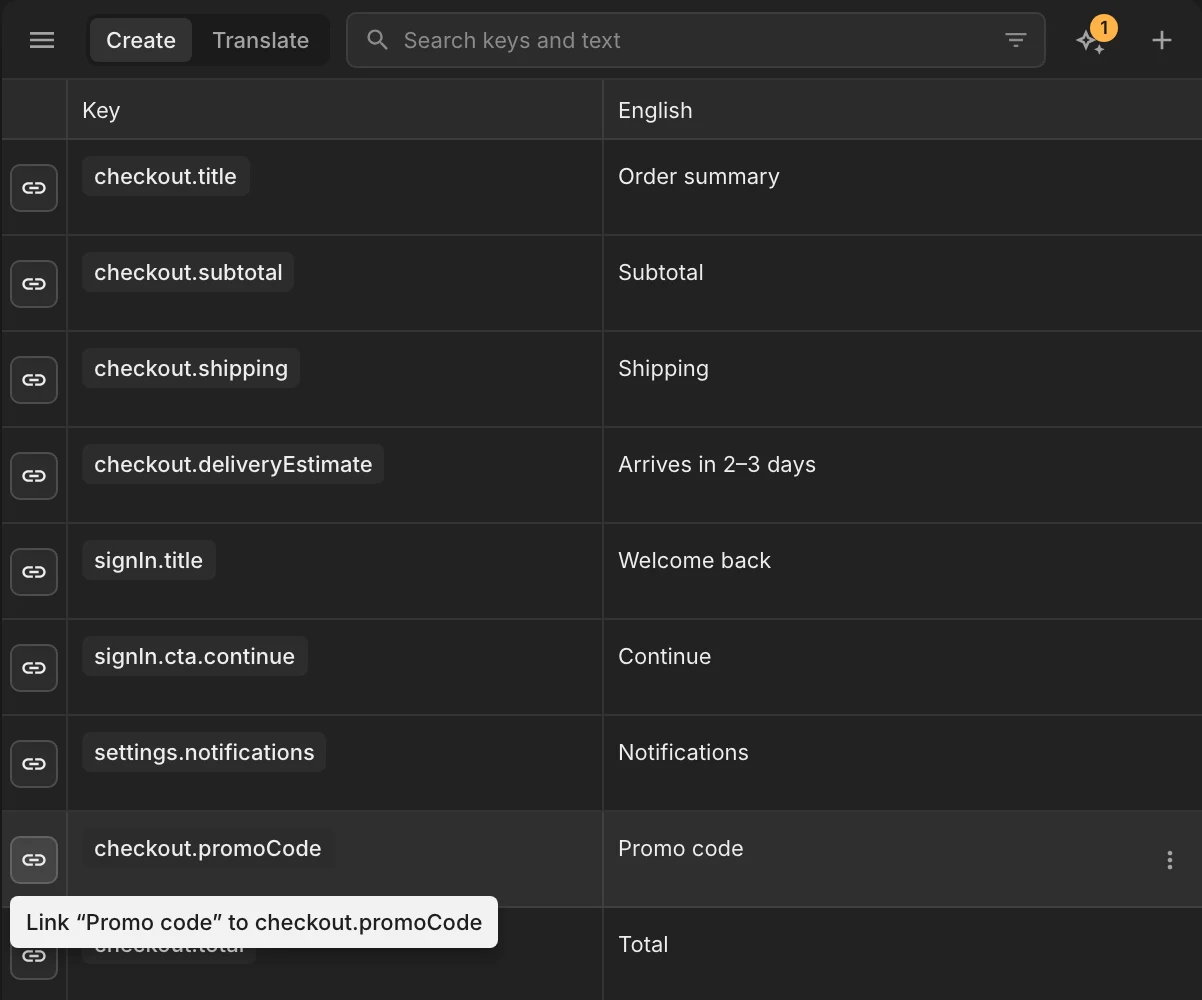
- In the Create tab, the link button at the start of each row turns on.
- Click the link button on the key you want. The row turns blue: that key is now linked to the layer.
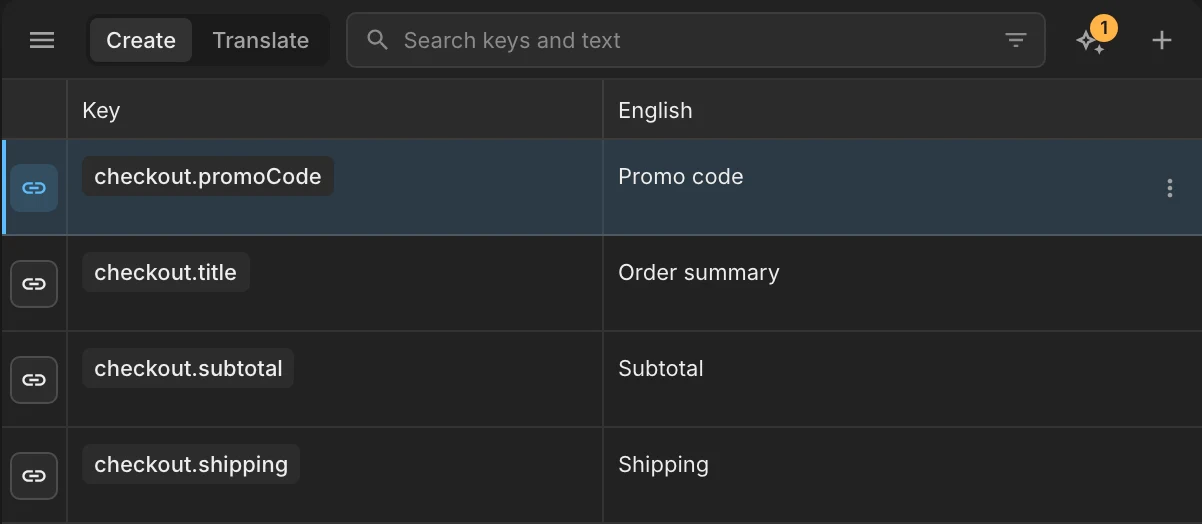
Keys linked to the current selection are always shown as the first rows, so you never have to scroll to find them.
Link several layers to one key
Several layers can share a key — for example every Save button. Select all of them and click the link button on the key: every selected layer is linked to it (and unlinked from any other key).
Unlink
Select the layer, then click the blue link button on its key. The status bar offers Undo.
Copies keep their links
A link is stored on the text layer itself, so copies and pastes of a linked layer stay linked — also into other frames or files.
Ask an AI agent to do it
“Link every text layer in the Checkout frame to the matching
checkout.*key.”
See Connect an AI agent.